
Markora product films
Open your workspace. Follow along.
From your own Chrome bookmarks to shared team folders, see how each task works.
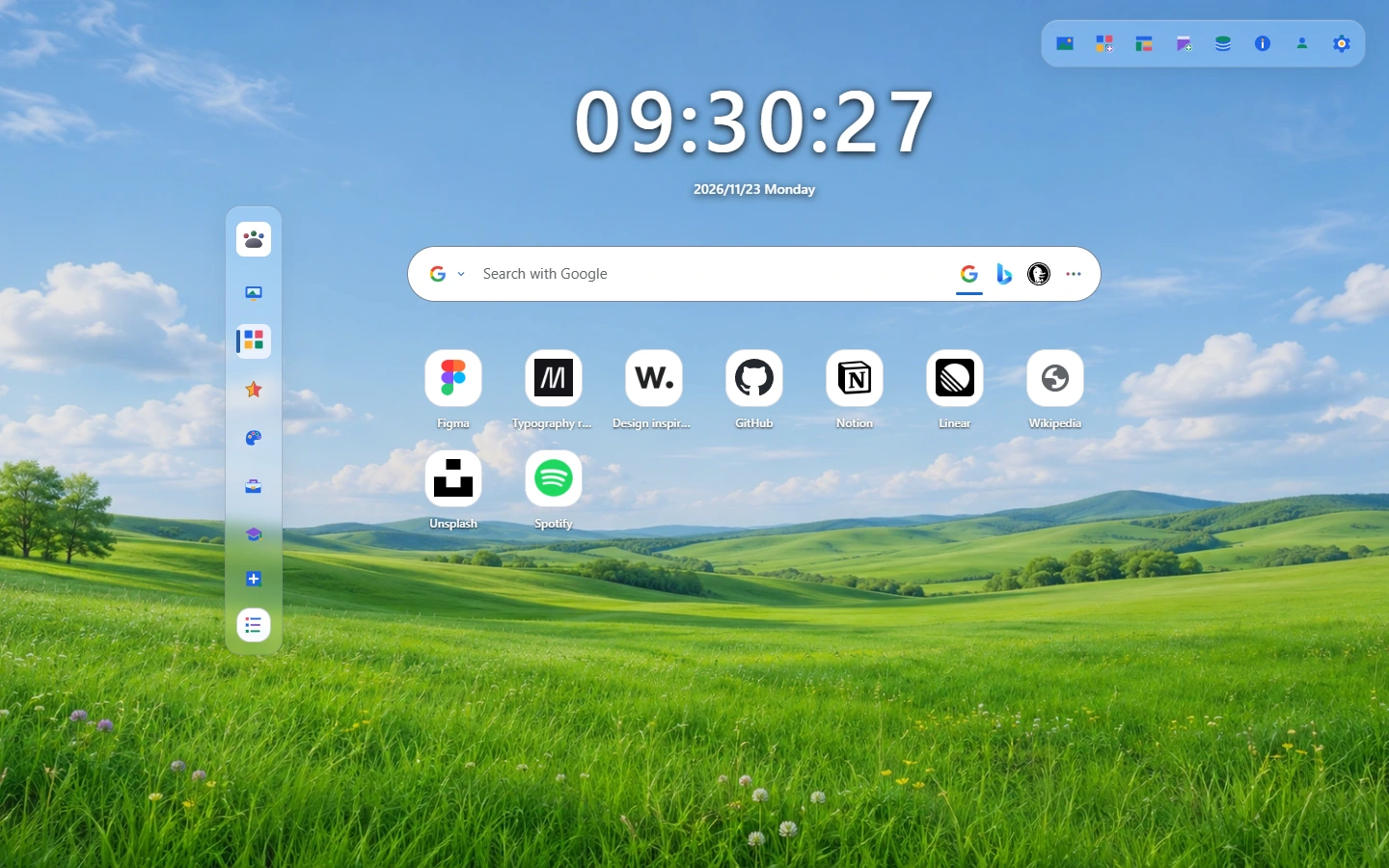
Personal bookmark tour · Product capture
Watch the personal tour
Choose a chapter
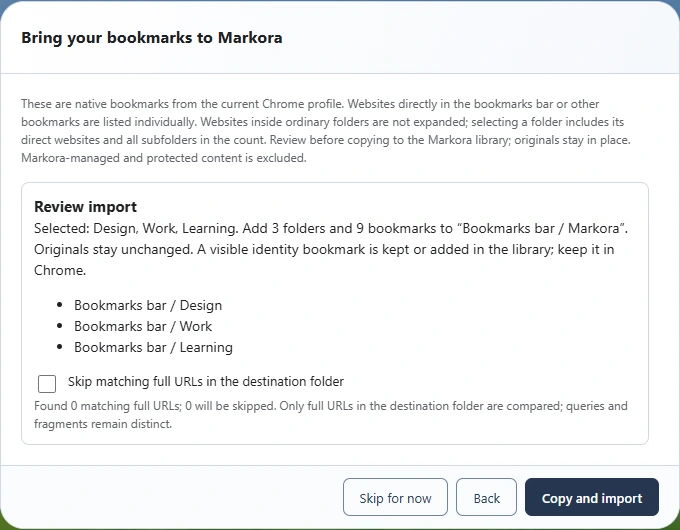
Import your bookmarks
Choose folders and review the scope
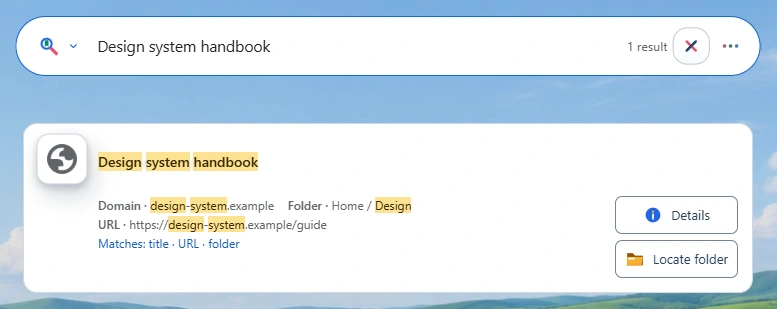
Search and quick save
Save a link and find it by title
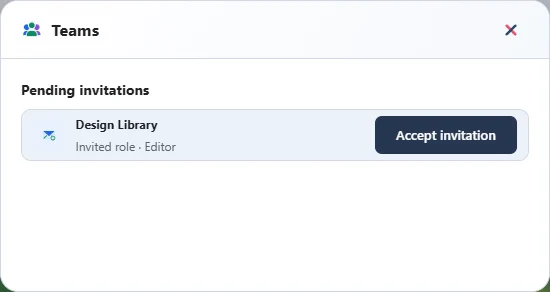
Team workspace
Accept an invite and open a shared link
Read the guides
Captions and written steps accompany each film
Team workspace · Invite-only pilot
One link for the whole team.
Access shared bookmarks by role
Sign in with an approved email and accept your invitation. Editors can save references. Viewers can find and open shared links.
Request pilot access Explore team workspaces Your personal bookmarks stay in your personal workspace.Personal bookmarks · First import 0:08
Read the steps
- Choose the Chrome folders to copy.
- Review the folders and links before importing.
- The selected items are copied into Markora. The originals stay in Chrome.
Search and quick save 0:11
Read the steps
- Review the title and URL in the quick-save form.
- Check the destination folder, save, and review the receipt.
- Switch to bookmark search and enter the title you saved.
- The result shows the saved address and folder.
Team workspace 0:36
Read the steps
- Editor · After signing in with an approved email, open the paw to see team invitations.
- Check the team and invited role, then accept to enter the workspace.
- Open Project references in the team navigation, then add a shared bookmark.
- Add a searchable tag and check the shared destination before saving.
- The saved bookmark now appears in the team folder.
- Viewer · In a separate browser, switch from the personal workspace to the same team.
- Choose bookmark search and type the tag added by the editor.
- Open the matching shared bookmark to visit the same page.
- Shared URL opened · example destination
Arrange the free layout 0:06
Read the steps
- In free layout, press and hold the task heading.
- Drag the widget to its new position and release.
- The new position is saved.
Add an important date 0:06
Read the steps
- Open the anniversary widget settings.
- Enter the event name and choose a date.
- The saved anniversary appears on the home page.
Review and undo a move 0:08
Read the steps
- Open Data and recovery, then select Snapshots.
- Choose Undo move and review the source and destination.
- After confirmation, the same bookmark returns to its original folder.