
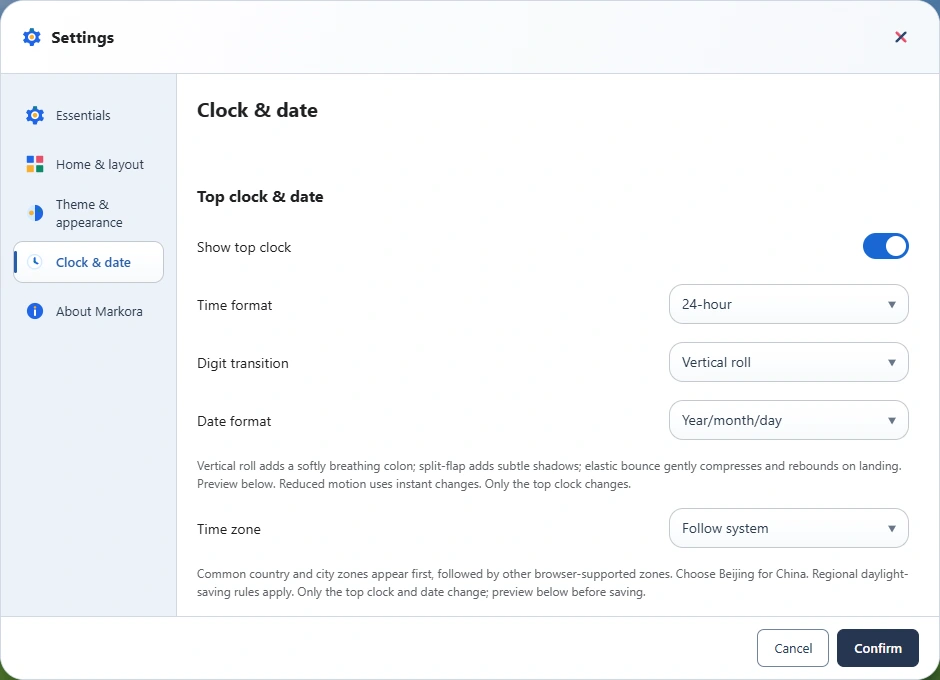
Choose a time zone
Choose a time zone in Settings → Clock & date. Follow system is the default; choose Beijing for China and a regional city for countries with multiple zones. Common zones come first, followed by browser-supported regions. Time, date, weekday and Chinese lunar date share the selected zone and daylight-saving rules. Preview before Confirm; Cancel preserves the old value. System time, weather and anniversary dates are unchanged.
Choose a transition
Settings → Clock & date previews the clock, date and search field. Choose instant, roll, flip or bounce. Done saves; Cancel keeps the old value. The top clock has no pause button.
Reduced motion
Reduced motion updates the real time statically, and hidden pages do not replay missed animations. Legacy fade values remain readable and exportable and are not replaced by unrelated edits.
Separate clock widget
The top clock is unaffected by the separate clock widget being Planned. Separate clock, notes and calendar widgets cannot currently be added; legacy content remains.