
Request access and join a team
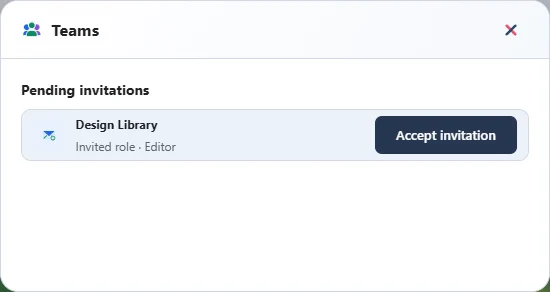
Open Settings → About Markora and email the address you want to use to support@markoraai.com. After approval, open the account control in the installed extension and request a six-digit code with the invited email address. Enter it within five minutes. In Account settings → Messages, accept the pending invitation, then choose the team. Pilot approval and team membership are separate steps.
Save and find shared bookmarks
Check the team name and destination folder before adding a URL, title, tags or shared note. Members can search the team library. Choose Back to personal workspace to return to your Chrome bookmarks. Switching workspaces does not copy those bookmarks into the team.
Member roles
Viewers can find and open shared bookmarks. Editors can also add, edit and organize them. Owners can invite or remove people, change roles and transfer ownership to an existing member in Members and permissions. Owners can withdraw a pending invitation from Sent invitations in team messages.
Export or recover team bookmarks
As owner, open Team data & recovery to export the current team. JSON includes folders, titles, URLs, shared tags and notes. Browser-compatible HTML includes folders, titles and URLs. Restoring from a team snapshot creates copies in the same team. To reverse a recorded move, edit or deletion, open Member operation snapshots, preview the affected entries and review any conflicts before confirming.
Read and manage messages
Account messages include invitations, role changes and removal notices. Team messages include team profile changes. A welcome notice is visible only to the new member. Select messages to mark them read or remove them from your inbox. Choose Undo in the deletion receipt to restore that batch.
Sign out and manage devices
Sign-in lasts up to 24 hours by default. On your own device you can choose seven days. On a shared computer, choose One-time sign-in and sign out when finished. Use Account settings → Sign-in and devices to review activity and end a selected session. Signing out leaves shared entries available to authorized team members.